Tracking for LinkedIn Ads
Growify enables you to track the performance of your LinkedIn Ads using UTM parameters. This guide will walk you through how to properly set up tracking so you can measure LinkedIn Ads impact across your customer journey inside Growify.
Table of UTM parameters
Here is a table with all UTM parameters that Growify will use to track all new and existing LinkedIn Ads.
To pick up a draggable item, press the space bar. While dragging, use the arrow keys to move the item. Press space again to drop the item in its new position, or press escape to cancel.
| UTM Key | UTM Value | Alternative UTM Key | Description |
|---|---|---|---|
| gr_source | utm_source | LinkedIn Source Channel | |
| gr_campaign | {{CAMPAIGN_ID}} | utm_campaign | Campaign ID |
| gr_adset_id | {{CAMPAIGN_GROUP_ID}} | Adset ID | |
| gr_ad_id | {{CREATIVE_ID}} | Ad ID |
To pick up a draggable item, press the space bar. While dragging, use the arrow keys to move the item. Press space again to drop the item in its new position, or press escape to cancel.
Here is an example of a destination URL with the UTM parameters added:
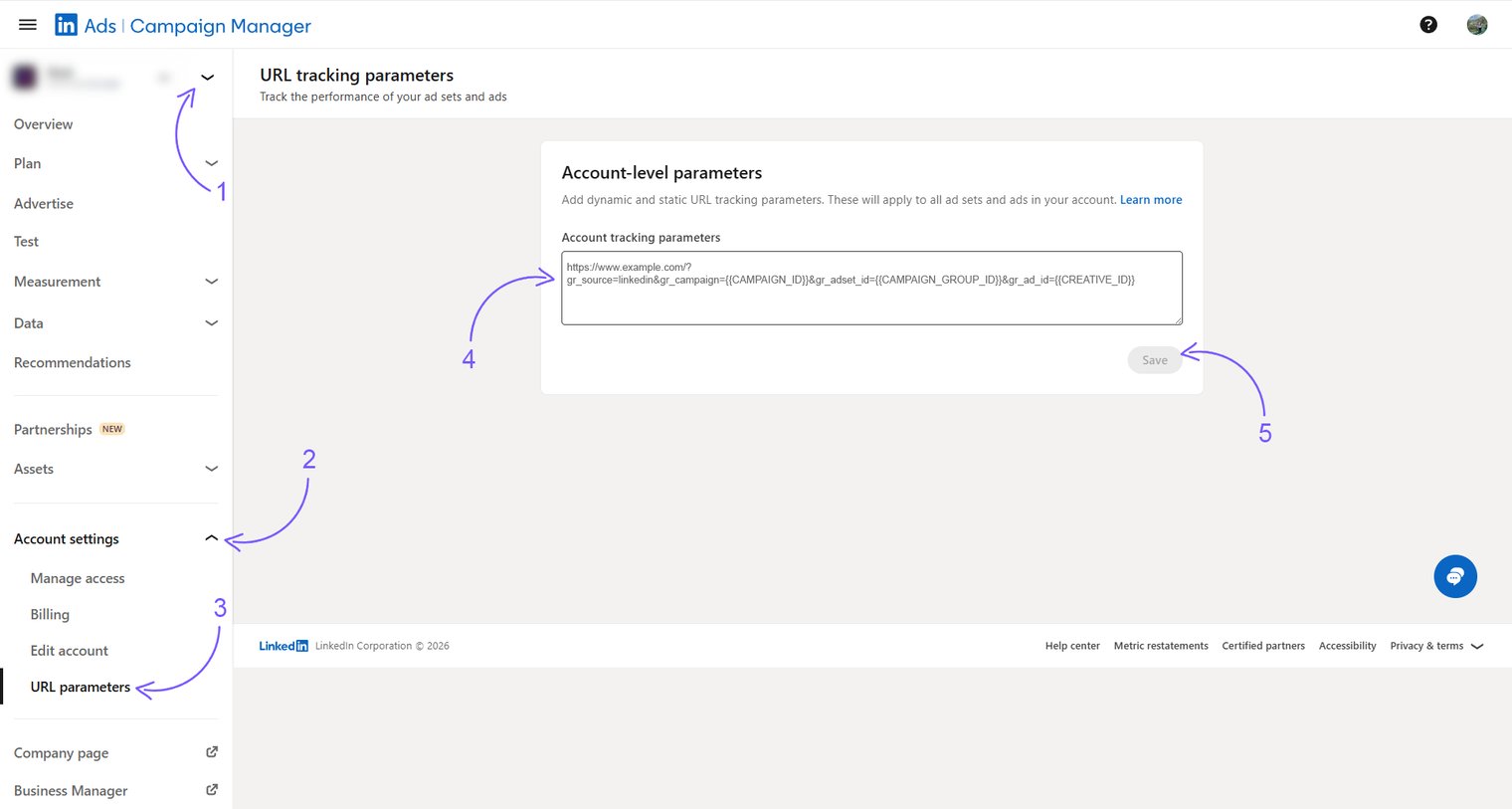
https://www.example.com/?gr_source=linkedin&gr_campaign={{CAMPAIGN_ID}}&gr_adset_id={{CAMPAIGN_GROUP_ID}}&gr_ad_id={{CREATIVE_ID}}
1. Install UTM Parameters
-
Go to the Campaign Manager in your LinkedIn Ads account.
-
Select your Ad Account(1)
-
Click Account settings(2)
-
Click URL parameters(3)
-
Paste your UTM parameters into the Tracking template field (4)
-
Click Save to apply the changes (5)
Make sure the destination URL contains a utm_source=linkedin, if the utm_source is not equal to “linkedin”, please add a param &gr_source=linkedin at the end of your url. Add this for new and existing ads.
You're All Set! 🚀
Need help? Visit our Product Documentation or Help Center or contact our support team.
Last updated 5 days ago
Built with Documentation.AI